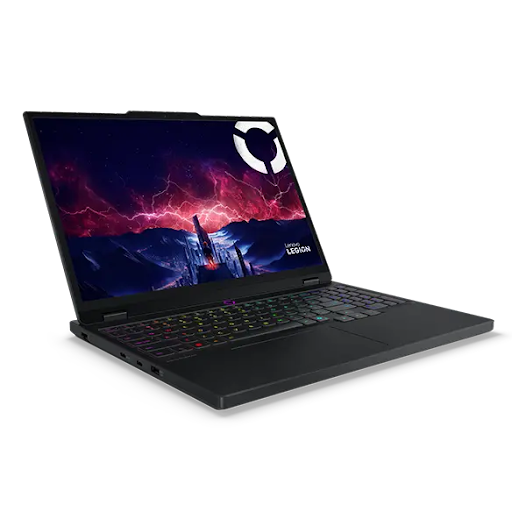
Your gaming laptop acts as a performance booster. It shifts its performance based on what you need at any given moment. Power profiles make this magic happen behind the scenes. These settings determine how your machine uses its battery and hardware resources. Most gamers never touch these profiles and miss out on better performance. Understanding these eight power profiles can transform your gaming experience completely. You get longer battery life when you need it and maximum power when gaming gets intense.
Each profile serves a specific purpose, and knowing when to switch between them gives you full control. Your laptop becomes more efficient and responsive to your actual needs. The right power profile can mean the difference between winning and losing in competitive matches.
What Power Profiles Actually Do
Power profiles control your laptop’s brain and muscles. They tell your processor how fast to run and your graphics card how hard to work. Think of them as different driving modes in a sports car. The best gaming laptops use intelligent power profiles that dynamically balance CPU, GPU, and cooling behavior instead of relying on simple on/off performance modes.
How These Profiles Work Behind The Scenes
Your laptop monitors dozens of components every second. The power profile sets limits and targets for each part. Your CPU can run at 20% capacity or push to 100% based on the active profile.
The operating system reads these instructions constantly. It adjusts fan speeds and component voltages in real time. Your screen brightness and storage speed also change according to the selected profile.
1. Battery Saver Mode Extends Your Gaming Sessions
This profile sacrifices performance for longevity. Your laptop can run for hours longer when you activate battery saver mode. Games will run slower, but you stay in the action.
- Reduces screen brightness automatically.
- Limits CPU speed to 30-40% maximum.
- Decreases GPU performance significantly.
- Disables background applications.
- Lower the refresh rate on your display.
You should use this mode during travel or when outlets are scarce. Light gaming and basic tasks work fine under these restrictions.
2. Balanced Mode Gives You The Middle Ground
Windows sets this as the default profile for good reason. Balanced mode provides decent performance without draining your battery too quickly. Your laptop makes smart decisions about when to boost power.
- Adjusts CPU speed based on current demand.
- Allows GPU to ramp up when needed.
- Maintains reasonable fan noise levels.
- Supports moderate multitasking.
- Provides 3-4 hours of mixed usage.
Most casual gamers never need to leave this setting. It handles web browsing and light gaming equally well.
With the gaming laptops market projected to surpass $20.73 billion in 2032, power profiles are becoming a key competitive feature.
3. High Performance Mode Unleashes Raw Power
Your laptop stops holding back when you switch to high performance. Every component runs at maximum capacity regardless of battery drain. This profile treats your machine like it’s always plugged in.
- The CPU maintains high clock speeds constantly.
- GPU receives an unlimited power budget.
- Fans spin faster to handle heat.
- Screen stays at maximum brightness.
- Background tasks get full resources.
Battery life drops dramatically under this mode. You might get only 90 minutes of gaming on battery power. The performance gains make it worthwhile during intense gaming sessions.
When To Activate Maximum Performance
Competitive multiplayer games demand this profile. Every frame matters in fast-paced shooters and racing games. You need consistent high performance without throttling.
Resource-heavy titles like flight simulators also require this setting. Your laptop delivers smooth frame rates and quick loading times. The trade-off in battery life becomes acceptable for these experiences.
4. Ultimate Performance Mode Breaks All Limits
Microsoft hides this profile from most users. You need to enable it through the command prompt or registry edits. Ultimate performance removes even the tiny delays between idle and active states.
- Eliminates micro-latency entirely.
- Keeps cores active at all times.
- Prevents any power-saving features
- Maximizes responsiveness.
- Consumes massive amounts of energy.
Professional gamers and content creators benefit most from this extreme setting. The battery drains in under an hour, but performance reaches absolute peak levels.
5. Creator Mode Balances Power And Precision
This profile targets video editors and 3D artists. The best gaming laptops with creator mode optimize for sustained workloads rather than burst performance. Color accuracy and thermal management take priority.
- Maintains consistent CPU frequencies.
- Reduces fan speed variations.
- Stabilizes GPU temperature.
- Enhances display color accuracy.
- Supports long rendering sessions.
Gamers who also create content should explore this option. Single-player story games run beautifully under creator mode settings.
6. Quiet Mode Keeps Things Silent
Libraries and late-night gaming sessions need quiet mode. Your laptop’s fan speeds up and reduces component power to minimize noise. Performance takes a back seat to acoustic comfort.
- Limits fan RPM to barely audible levels.
- Reduces CPU and GPU heat output.
- Extends component lifespan.
- Allows comfortable headphone-free gaming.
- Maintains playable frame rates for older titles.
Indie games and strategy titles work perfectly under these constraints. You won’t win any benchmark competitions, but you keep your sanity.
7. Custom Profiles Let You Take Control
Advanced users create personalized power profiles. You set exact limits for every component based on your specific needs. This approach requires technical knowledge but delivers perfect optimization.
- Define precise CPU frequency limits.
- Set custom GPU power targets.
- Control individual fan curves.
- Adjust screen brightness thresholds.
- Schedule automatic profile switching.
Gaming laptop manufacturers often include custom profile creators. These tools simplify the process and let you save multiple configurations.
8. Eco Mode Prioritizes The Planet
Some newer laptops include eco-friendly profiles. These settings reduce energy consumption and carbon footprint. Performance suffers, but environmental impact decreases measurably.
- Caps total system power draw.
- Favors efficiency cores over performance cores.
- Reduces component wear over time.
- Extends the overall laptop lifespan.
- Lowers electricity costs.
Casual gamers who care about sustainability should consider this option. Turn-based games and visual novels run fine with reduced power.
Making Power Profiles Work For You
Your gaming laptop becomes truly versatile once you master these eight profiles. Switch between them based on your current situation and needs. Battery life and performance no longer fight each other.
Create keyboard shortcuts for your most-used profiles. Quick switching lets you adapt instantly to changing circumstances. Your laptop responds exactly how you want it to in every scenario.
The best gaming laptop uses different profiles throughout the day. Battery saver during commutes and high performance during evening gaming sessions. Understanding these options puts you in complete command of your hardware. Your gaming laptop finally works the way you always wanted it to work.